Your website looked great when it launched. But over time, it started feeling slower. Pages took longer to load, Google PageSpeed scores dropped, and visitors began leaving before the page had fully loaded.
If this sounds familiar, you’re not alone.
One of the biggest misconceptions about WordPress is that it becomes slow simply because it’s built on WordPress. In reality, WordPress itself is highly capable. The real problems usually come from oversized images, poor caching, unnecessary plugins, render-blocking resources, or an unoptimized hosting environment.
Over the past several years, we’ve optimized websites for performance and analyzed real Core Web Vitals reports. During one recent optimization project, we improved Largest Contentful Paint (LCP), reduced render-blocking CSS, optimized image delivery, fixed layout shifts, and significantly improved PageSpeed Insights results by addressing the actual bottlenecks instead of installing more optimization plugins.
This guide explains the 15 most common reasons why WordPress websites become slow, how to identify each problem, and the practical steps you can take to fix them.
Whether you’re a business owner, developer, or designer, these are the same principles we follow when optimizing websites at Clone Gallery.
Table of Contents
- Why Website Speed Matters
- Large Images
- Your LCP Image Loads Too Late
- Render-Blocking CSS
- Too Many Plugins
- Poor Hosting
- No Proper Caching
- Heavy Themes
- Too Much JavaScript
- Web Fonts
- Database Bloat
- Third-Party Scripts
- No CDN
- Mobile Performance Issues
- Ignoring Core Web Vitals
- No Ongoing Maintenance
- Final Performance Checklist
- Frequently Asked Questions
Why Website Speed Matters
Website speed is no longer just a technical metric—it directly affects user experience, search visibility, and business growth.
A slow website can lead to:
- Higher bounce rates
- Lower search rankings
- Reduced conversions
- Poor mobile experience
- Lower customer trust
Google measures page experience through Core Web Vitals, which focus on how quickly content appears, how stable the layout remains, and how responsive the page feels during user interaction.
Improving these metrics isn’t about chasing a perfect score—it’s about creating a faster, smoother experience for real visitors.
1. Large Images Are Slowing Down Your Website
One of the most common reasons a WordPress website becomes slow is oversized images.
Many website owners upload images directly from a camera, Photoshop, or Canva without considering how large those files are. While the image may look fine visually, visitors are forced to download far more data than necessary.
For example, an image displayed at 650 pixels wide might actually be 2400 pixels wide. The browser still downloads the larger file, increasing loading time and delaying important content.
Common Signs
- Hero image loads slowly
- Poor Google PageSpeed score
- High Largest Contentful Paint (LCP)
- Slow mobile experience
How to Fix It
- Resize images before uploading.
- Convert images to WebP or AVIF where supported.
- Use responsive images (
srcset). - Avoid uploading images larger than the display size.
- Compress images without noticeable quality loss.
2. Your Largest Contentful Paint (LCP) Image Loads Too Late
The hero image is often the Largest Contentful Paint (LCP) element.
If this image is lazy-loaded or discovered too late, visitors see an empty page while the browser waits to load the most important visual.
This is one of the most common issues we identify during performance audits.
Real Example
During a recent optimization project, PageSpeed Insights reported:
- LCP image discovered late
- Resource load delay over 2 seconds
- Hero image larger than its displayed size
- Lazy-loading applied to above-the-fold content
After correcting the image loading strategy, the browser was able to request the hero image immediately, significantly improving LCP.
Best Practices
- Never lazy-load the primary hero image.
- Use
fetchpriority="high"for the LCP image. - Ensure the image is present in the initial HTML.
- Serve the correctly sized image.
3. Render-Blocking CSS Delays Your First Paint
Many WordPress websites load CSS files that block rendering.
This means the browser cannot display anything until those stylesheets have been downloaded and processed.
Even a small stylesheet can delay the first visible content if it’s loaded in the critical rendering path.
Typical Causes
- Theme CSS
- Plugin CSS
- Google Fonts stylesheets
- Page builder assets
How to Fix It
- Remove unused CSS.
- Inline critical CSS.
- Defer non-critical styles.
- Minify CSS files.
- Avoid loading plugin CSS on pages where it’s isn’t needed.
4. Too Many Plugins Create Hidden Performance Problems
WordPress plugins are useful, but every plugin adds code, database queries, scripts, and styles.
The issue isn’t simply the number of plugins—it’s the quality and efficiency of those plugins.
A well-built site can perform well with dozens of optimized plugins, while a poorly optimized plugin can slow down a website on its own.
Common Plugin Issues
- Duplicate functionality
- Unused page builders
- Heavy sliders
- Social sharing plugins
- Analytics plugins loading multiple scripts
Best Practice
Perform regular plugin audits and remove anything that’s no longer essential.
Ask yourself:
Does this plugin provide enough value to justify the performance cost?
5. Your Hosting Environment Matters More Than You Think
Even a perfectly optimized website can feel slow on poor hosting.
Shared servers with overloaded resources often struggle during traffic spikes.
Modern WordPress websites benefit from hosting environments that support:
- LiteSpeed
- HTTP/3
- OPcache
- Object Cache
- PHP 8+
- SSD or NVMe storage
Good hosting reduces server response time and provides a stronger foundation for every other optimization.
What to Look For
- Fast Time to First Byte (TTFB)
- Built-in caching
- Latest PHP version
- Automatic backups
- CDN compatibility
- Reliable uptime
6. You’re Not Using Proper Caching
Caching is one of the fastest ways to improve WordPress performance.
Without caching, your server rebuilds every page from scratch whenever someone visits your website. That means WordPress loads PHP files, queries the database, processes plugins, and generates the page again and again.
Caching stores a ready-to-serve version of your website so visitors receive the page much faster.
Types of Caching
- Page Cache
- Browser Cache
- Object Cache
- Opcode Cache
- CDN Cache
Real Experience
During one website optimization project, simply configuring LiteSpeed Cache correctly reduced server processing time significantly without changing the website design.
Many websites install caching plugins but never configure them properly.
A caching plugin is only effective when its settings match your hosting environment.
Best Practices
- Enable Page Cache
- Enable Browser Cache
- Compress CSS & JavaScript
- Enable GZIP or Brotli
- Use Object Cache where available
- Purge cache after major updates
7. Your Theme Is Loading More Than You Need
Not every WordPress theme is built with performance in mind.
Some themes include dozens of unnecessary features, page builders, animations, sliders, icon libraries, and JavaScript files—even when your website doesn’t use them.
The result is a larger page size and slower rendering.
Signs
- Large CSS files
- Multiple JavaScript requests
- Low PageSpeed score
- Slow First Contentful Paint
Better Approach
Choose a lightweight theme and only load the assets your website actually needs.
Performance should be part of the design process—not something you try to fix afterward.
8. Too Much JavaScript Delays User Interaction
Modern websites often rely heavily on JavaScript.
While JavaScript adds interactivity, excessive or poorly optimized scripts can delay rendering and make the page feel unresponsive.
Google measures this through Interaction to Next Paint (INP).
Common Sources
- Sliders
- Live chat widgets
- Analytics tools
- Marketing pixels
- Popups
- Animation libraries
Optimization Tips
- Remove unused scripts
- Load JavaScript only where required
- Defer non-critical JavaScript
- Delay third-party scripts until user interaction
A faster website isn’t about adding more optimization plugins—it’s about loading less code.
9. Web Fonts Can Quietly Hurt Performance
Typography is important, but fonts can become one of the biggest hidden performance issues.
Many websites load multiple font families, several font weights, and external font providers.
Each additional font requires another network request.
Typical Problems
- Loading five or six font weights
- Using multiple font families
- No font preloading
- No
font-display: swap
Best Practices
- Limit font weights
- Host fonts locally where practical
- Preload critical fonts
- Use
font-display: swap - Remove unused font families
Small improvements in typography loading often produce noticeable gains in Core Web Vitals.
10. Your Database Needs Regular Maintenance
Every WordPress website stores information inside a database.
Over time, the database fills with:
- Old revisions
- Spam comments
- Expired transients
- Temporary data
- Plugin leftovers
- Unused options
A bloated database increases processing time and slows down page generation.
Maintenance Checklist
- Delete post revisions
- Remove spam comments
- Clear expired transients
- Remove inactive plugin tables
- Optimize database tables regularly
Think of database optimization like servicing a car.
The engine may still run, but regular maintenance keeps it performing efficiently.
Clone Gallery Performance Tip
One lesson we’ve learned through real optimization projects is that there’s rarely a single issue causing poor performance.
Instead, it’s usually the result of several small problems working together:
- Images that are slightly too large
- Fonts that load too late
- CSS that blocks rendering
- Plugins adding unnecessary scripts
- A database that hasn’t been optimized
- Caching configured incorrectly
Individually, each issue may seem minor. Together, they can make a website feel significantly slower.
The best results come from identifying and fixing the real bottlenecks rather than chasing a perfect PageSpeed score.
Performance Audit Questions
Ask yourself:
- Is every plugin still necessary?
- Are my fonts optimized?
- Is JavaScript delaying interaction?
- Have I configured caching correctly?
- Has my database been maintained recently?
If the answer is no, there’s a good chance your website can be made noticeably faster without a complete redesign.
11. Third-Party Scripts Are Slowing Down Your Website
Many website owners focus only on WordPress plugins but forget about third-party services.
Every external script must be downloaded before the browser can fully render your page.
Some of the biggest offenders include:
- Google Analytics
- Meta Pixel
- Live Chat Widgets
- Cookie Consent Tools
- YouTube Embeds
- Google Maps
- Marketing Automation Scripts
Individually, these scripts may seem harmless, but together they can significantly delay rendering and user interaction.
Best Practices
- Only install tools you actually use.
- Delay marketing scripts until after the page loads.
- Replace embedded YouTube videos with preview thumbnails.
- Load Google Maps only when visitors interact with the map.
12. You’re Not Using a CDN
A Content Delivery Network (CDN) stores copies of your website on servers around the world.
Instead of downloading images, CSS and JavaScript from a single location, visitors receive them from the nearest server.
For businesses serving international audiences, a CDN can dramatically improve loading times.
Benefits
- Faster global performance
- Lower server load
- Better image delivery
- Improved Core Web Vitals
- Increased reliability during traffic spikes
If your audience is spread across multiple countries, a CDN is no longer optional—it’s part of a modern web performance strategy.
13. Mobile Performance Is Different From Desktop
Many websites perform well on desktop but struggle on mobile devices.
Why?
Because mobile users often have:
- Slower internet connections
- Less powerful processors
- Smaller screens
- Limited memory
A page that loads in two seconds on desktop may take twice as long on a mobile network.
Mobile Optimization Checklist
- Compress images
- Reduce JavaScript
- Avoid unnecessary animations
- Simplify layouts
- Use responsive typography
- Minimize network requests
Always test your website on a real smartphone—not just a desktop browser resized to mobile dimensions.
14. You’re Ignoring Core Web Vitals
Google evaluates user experience through three important metrics.
Largest Contentful Paint (LCP)
Measures how quickly the main content becomes visible.
Target:
Less than 2.5 seconds
Interaction to Next Paint (INP)
Measures how responsive your website feels after users interact with it.
Target:
Less than 200 milliseconds
Cumulative Layout Shift (CLS)
Measures visual stability.
If buttons, images or text move unexpectedly while loading, your CLS score increases.
Target:
Less than 0.1
Many website owners focus only on PageSpeed scores.
Professional optimization focuses on improving real user experience, not just achieving a higher number.
15. Website Speed Is Not a One-Time Task
One of the biggest mistakes businesses make is optimizing their website once and assuming the job is complete.
Over time, websites change:
- New plugins are installed.
- Images are uploaded.
- Themes are updated.
- Marketing scripts are added.
- Content grows.
Without regular performance reviews, websites gradually become slower again.
Think of website optimization like maintaining a car.
Regular servicing keeps everything running smoothly.
Clone Gallery Case Study
While optimizing our own website, we identified several real performance issues through PageSpeed Insights.
Instead of relying on a single optimization plugin, we systematically investigated each bottleneck.
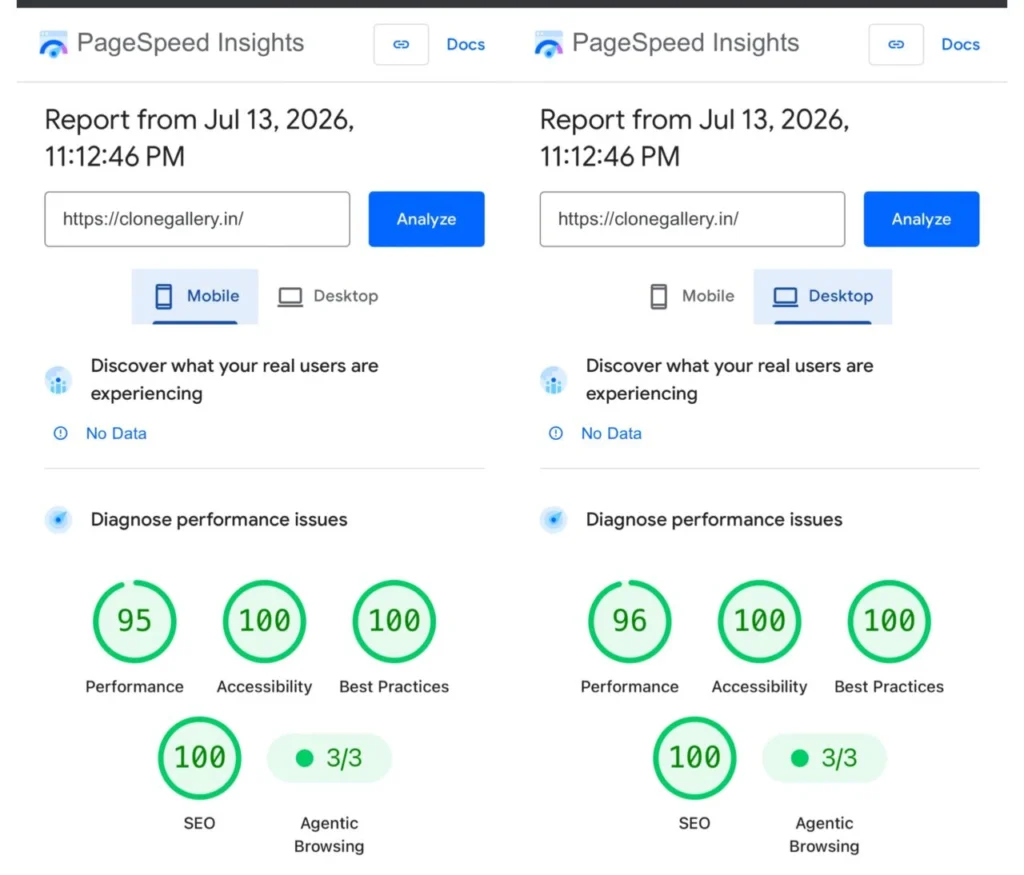
The improvements included:
- Correctly sizing responsive images
- Optimizing Largest Contentful Paint (LCP)
- Removing render-blocking CSS
- Improving cache configuration
- Fixing layout shift issues
- Optimizing font loading
- Reviewing JavaScript delivery
- Reducing unnecessary requests
The biggest lesson?
Performance improvements came from solving real problems—not installing more plugins.
This experience reinforced an important principle:
A fast website is built through thoughtful engineering, not quick fixes.
WordPress Performance Checklist
Before publishing your next website, review this checklist:
Images
- Resize images before uploading
- Use WebP where possible
- Enable responsive images
- Avoid lazy-loading the hero image
CSS & JavaScript
- Remove unused CSS
- Defer non-critical JavaScript
- Minify assets
- Reduce third-party scripts
Hosting
- Use modern PHP
- Enable server caching
- Configure LiteSpeed or equivalent
- Use SSD or NVMe storage
Fonts
- Limit font families
- Preload critical fonts
- Use
font-display: swap
Database
- Remove revisions
- Delete spam comments
- Clean expired transients
- Optimize database tables
Core Web Vitals
- LCP under 2.5 seconds
- INP under 200 ms
- CLS under 0.1
Frequently Asked Questions
Does WordPress become slow over time?
WordPress itself doesn’t become slow. Performance issues usually result from oversized images, poor hosting, inefficient plugins, outdated themes, or a lack of ongoing maintenance.
Can plugins alone make a website slow?
Yes. Poorly optimized plugins can add unnecessary database queries, JavaScript, CSS and external requests that reduce overall performance.
Is a PageSpeed score of 100 necessary?
No. A perfect score isn’t the goal. A fast, stable and responsive experience for real users is far more important than chasing a perfect number.
Which matters more: hosting or optimization?
Both. Good hosting provides the foundation, while proper optimization ensures your website makes the best use of those resources.
Final Thoughts
A slow WordPress website isn’t caused by one big mistake—it’s usually the result of dozens of small issues accumulating over time.
The good news is that nearly every performance problem has a solution.
Rather than installing more plugins or redesigning your website from scratch, start by identifying the real bottlenecks. Measure performance, prioritize the biggest issues and optimize systematically.
At Clone Gallery, we believe performance is part of good design. A modern website should not only look professional but also load quickly, feel responsive and deliver a smooth experience across every device.
If your website feels slower than it should, treat it as an opportunity to improve—not just for search engines, but for every visitor who lands on your site.
Author Bio
Ravi Kumar is the founder of Clone Gallery™, a multidisciplinary creative studio specializing in brand identity, WordPress development, performance optimization and AI-assisted creative systems. Through real-world case studies and practical guides, he shares strategies that help businesses build faster, more effective digital experiences.